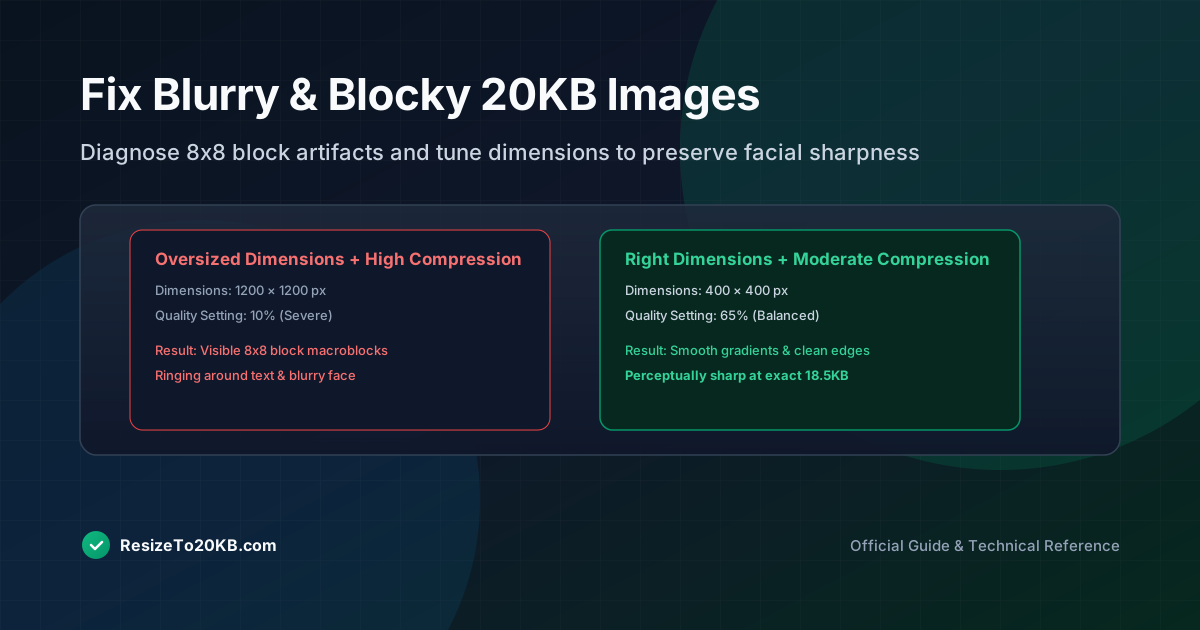
Nobody wants a blurry compressed image representing them on an official application. Yet squeezing a photo down to 20KB often introduces exactly that problem. This guide explains why compression damages quality at small sizes, and how to minimize the visible damage.
Why Extremely Small Files Can Lose Visible Detail
Hitting extremely small file size targets requires discarding significant image data. There’s a hard limit to how much detail any photo can retain once compression becomes aggressive enough to reach something as tight as 20KB.
This tradeoff is unavoidable to some degree. Understanding it helps set realistic expectations. A 20KB image quality target will always involve some compromise, the goal is simply minimizing how noticeable that compromise becomes to the viewer.
How JPEG Compression Creates Blocky Artifacts
JPEG artifacts appear because the format compresses images in small square blocks, typically eight by eight pixels. At aggressive compression levels, these block boundaries become visible, creating a blotchy or blocky image appearance throughout the photo.
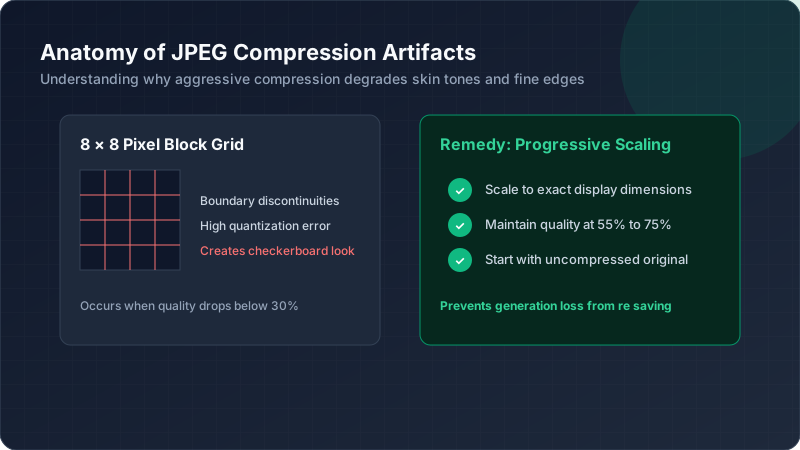
This happens more noticeably in areas with subtle color gradients, like skin tones or skies. Flat, single-color regions handle heavy JPEG compression far better, since there’s less gradient information for the blocking pattern to disrupt visibly.
Why Text and Fine Lines Become Difficult to Preserve
Sharp edges and small text suffer disproportionately under compression. The algorithm blurs fine details to save space, and text legibility often collapses first once compression artifacts become significant at very small target file sizes.
This creates real problems for document photos containing readable text. If legibility matters, consider whether PNG format might serve better despite its larger baseline size, since it preserves sharp edges without introducing this specific blur problem.
How Excessive Compression Can Make Faces Look Soft
Facial detail suffers noticeably under heavy compression, with skin often appearing waxy or artificially smooth. This photo quality loss becomes especially problematic for identification photos, where clear facial features matter for verification purposes.
Finding the right compression threshold before faces start looking unnaturally soft takes some experimentation. Generally, stopping compression before quality drops below acceptable recognition thresholds matters more than hitting an exact file size number.
Why Repeatedly Saving a JPEG Can Reduce Quality
Each time you save a JPEG, compression applies again, even to an already-compressed file. This JPEG recompression effect compounds over multiple edits, gradually degrading quality far beyond what a single compression pass would produce.
Always work from the original, uncompressed source file whenever making adjustments. Avoid repeatedly opening, editing, and resaving the same compressed 20KB image, since each cycle introduces additional, cumulative, irreversible quality loss.
How Image Dimensions Affect Perceived Sharpness
Smaller pixel dimensions actually help perceived sharpness at low file sizes. Fewer pixels means the same compression settings distribute available data more generously per pixel, often looking cleaner than a larger image compressed equally hard.
This is counterintuitive but important. Sometimes reducing dimensions further, rather than pushing compression harder, produces a visually cleaner 20KB photo than trying to preserve larger dimensions through increasingly aggressive quality reduction.
How to Balance Compression With Visual Quality
Test multiple combinations rather than settling on the first result that hits your target size. Here’s a simple table showing typical tradeoffs:
| Approach | Visual Result |
|---|---|
| Small dimensions, moderate compression | Often cleanest |
| Large dimensions, heavy compression | Often blockiest |
| Medium dimensions, balanced compression | Usually best compromise |
Testing several combinations reveals which approach suits your specific photo best.
When Changing the Format Can Improve the Result
Sometimes switching formats solves persistent blur problems entirely. If JPEG keeps producing unacceptable compression artifacts, try WebP instead, since its more modern algorithm often preserves detail better at equivalent small file sizes.
This won’t work for every upload portal, since format compatibility varies. But when flexibility exists, testing alternative formats sometimes resolves quality complaints that endless JPEG quality slider adjustments simply couldn’t fix satisfactorily.
How to Fix a Blurry Image Before Reaching the 20KB Limit
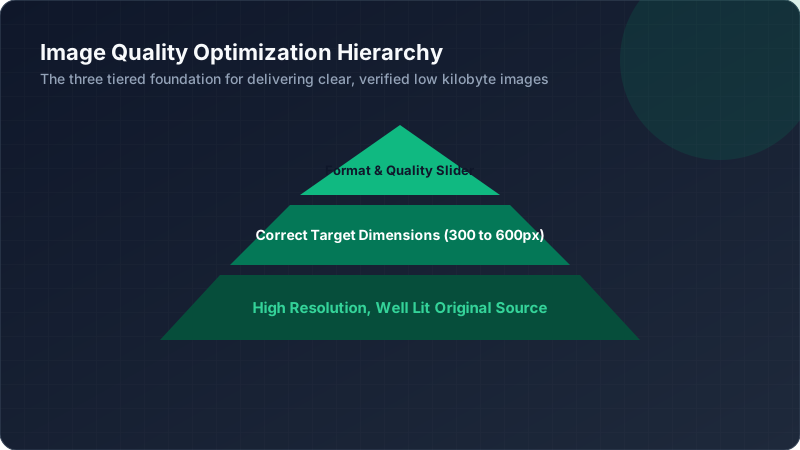
Start with a sharp, well-lit original photo. Poor source quality compounds during compression, producing far worse results than starting with a crisp, properly focused image before any image resizing or compression begins.
Good lighting and focus at the photography stage matters more than most people realize. No amount of clever compression technique can fully recover detail that was never captured clearly in the original source photograph to begin with.
Conclusion: Getting a Smaller File Without Excessive Blur
Blurriness at 20KB isn’t inevitable, it’s usually the result of pushing compression too hard on oversized dimensions. Start with a sharp original, reduce pixel dimensions thoughtfully, then apply moderate compression rather than extreme settings. This balanced approach consistently produces clearer results.