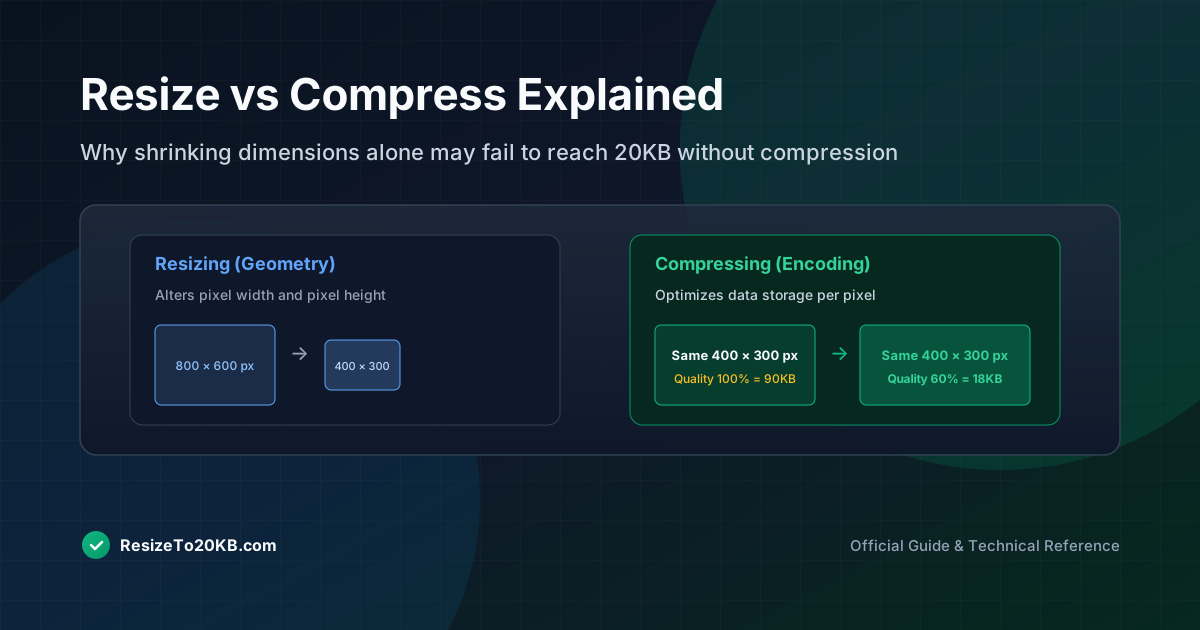
Many people resize a photo, watch the dimensions shrink, then get confused when the file size barely changes. This happens because resize vs compress are two completely different processes. Understanding the difference is the key to finally solving that stubborn 20KB upload problem for good.
What Is the Difference Between Resizing and Compressing?
Resizing changes pixel dimensions, the actual width and height of an image. Compressing changes how efficiently that pixel data is stored, without necessarily touching dimensions at all. These are separate tools solving separate problems.
Confusing the two leads to frustration. Someone shrinks a photo’s dimensions, expects file size to plummet, then wonders why their image resizing attempt barely moved the needle. Real results require understanding, and often combining, both techniques together.
How Changing Pixel Dimensions Changes File Size
Smaller pixel dimensions mean fewer total pixels, which generally reduces file size. This relationship isn’t always linear, but it’s usually significant. Cutting dimensions in half often reduces raw file size by roughly seventy-five percent.
This makes resizing a powerful first step before you even touch compression level settings. Fewer pixels simply means less data to store, giving compression tools a much smaller starting point to work with afterward.
Why Compression Can Reduce KB Without Changing Dimensions
Image compression works differently. It keeps the same pixel dimensions but changes how that data gets encoded, discarding information the eye won’t easily notice. This is especially true for lossy compression formats like JPEG.
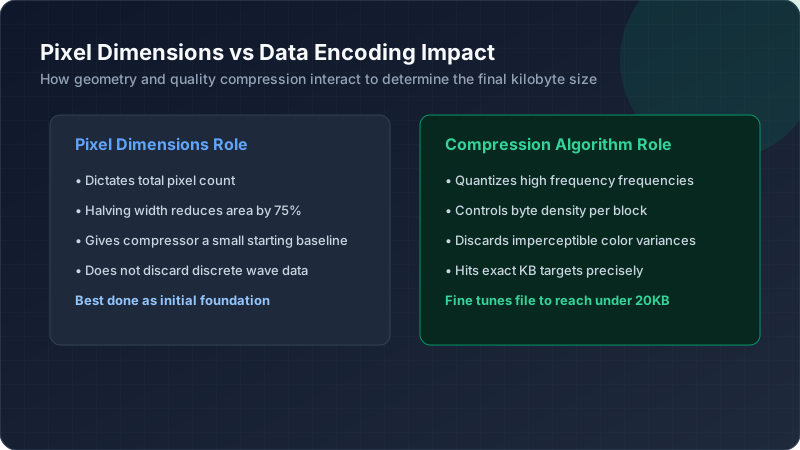
A photo can stay exactly 800x600 pixels while dropping from 200KB to 20KB purely through compression adjustments. This is why JPEG quality sliders exist separately from resize dimensions, controlling file size independently from physical measurements.
Why Resizing Alone May Not Get You Below 20KB
Resizing alone sometimes isn’t enough, particularly for detailed or high-resolution originals. Shrinking dimensions reduces file size, but a complex photo can still exceed 20KB even at fairly small pixel measurements without additional compression applied.
This is the most common reason people get stuck. They resize repeatedly, watching dimensions shrink smaller and smaller, without realizing compression settings need adjustment too. Both tools working together produce far better results than either alone.
How File Format Affects the Result After Resizing
Image format matters enormously here. PNG files preserve every pixel exactly, producing larger files even at small dimensions. JPEG applies lossy compression automatically, generally producing dramatically smaller files for the same visual content.
Switching formats after resizing often solves stubborn size problems instantly. A resized PNG might still sit well above 20KB, while the same dimensions saved as JPEG could easily land under the target without any further adjustment.
Why Two Images With Identical Dimensions Can Have Different Sizes
This confuses people constantly. Two 400x400 photos can differ dramatically in file size, purely based on visual complexity. A simple, plain-background photo compresses far more efficiently than a busy, detailed, colorful one.
This is why generic advice like “just resize to 400x400” doesn’t guarantee 20KB image success. Compression level, format choice, and image content all interact together, meaning results vary significantly depending on what’s actually in the photo.
How Image Quality Settings Control JPEG File Size
JPEG quality settings typically range from 0 to 100. Higher numbers preserve more detail but produce larger files. Lower numbers shrink file size aggressively, sometimes introducing visible blockiness or blur if pushed too far.
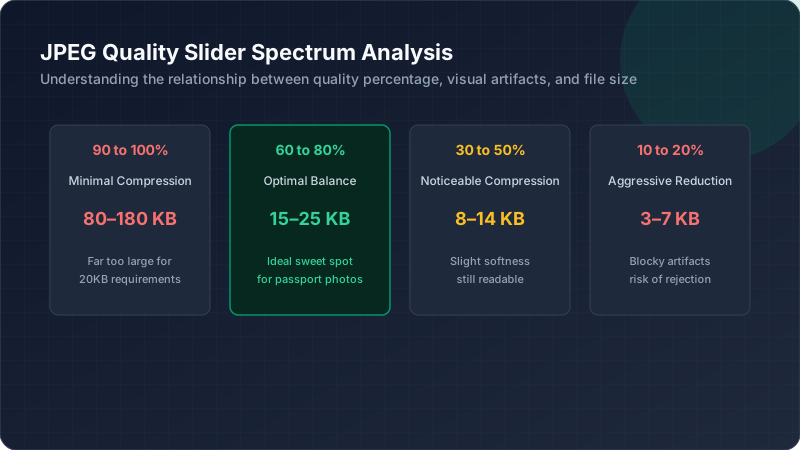
Here’s a rough comparison table showing typical results:
| Quality Setting | Approximate File Size Impact |
|---|---|
| 90-100 | Minimal compression, larger file |
| 60-80 | Balanced, moderate reduction |
| 30-50 | Noticeable compression |
| 10-20 | Aggressive, visible quality loss |
Finding the sweet spot usually means testing several settings.
When Should You Resize Before Compressing?
Always resize first, then compress. Starting with smaller pixel dimensions means compression has less overall data to work through, generally producing cleaner results than aggressively compressing an unnecessarily large original image.
This order matters more than people expect. Compressing first, then resizing, can sometimes reintroduce artifacts or waste processing effort on data that gets discarded anyway once dimensions shrink during the following resize step.
How to Troubleshoot an Image That Refuses to Reach 20KB
If you’ve resized and compressed but still exceed 20KB, check your image format first. Switching from PNG to JPEG often resolves the issue immediately. If that doesn’t help, reduce dimensions further before compressing again.
Stubborn cases usually involve extremely detailed or colorful originals. Simplifying the background, cropping tightly, or reducing dimensions more aggressively than initially planned typically breaks through whatever barrier is preventing your target file size from being reached.
Conclusion: Knowing When to Resize and When to Compress
Resizing and compressing solve different problems, and real success requires using both together strategically. Shrink your pixel dimensions first, then apply thoughtful JPEG compression, and always verify format choice along the way. Understanding this distinction turns a frustrating guessing game into a predictable, repeatable process.