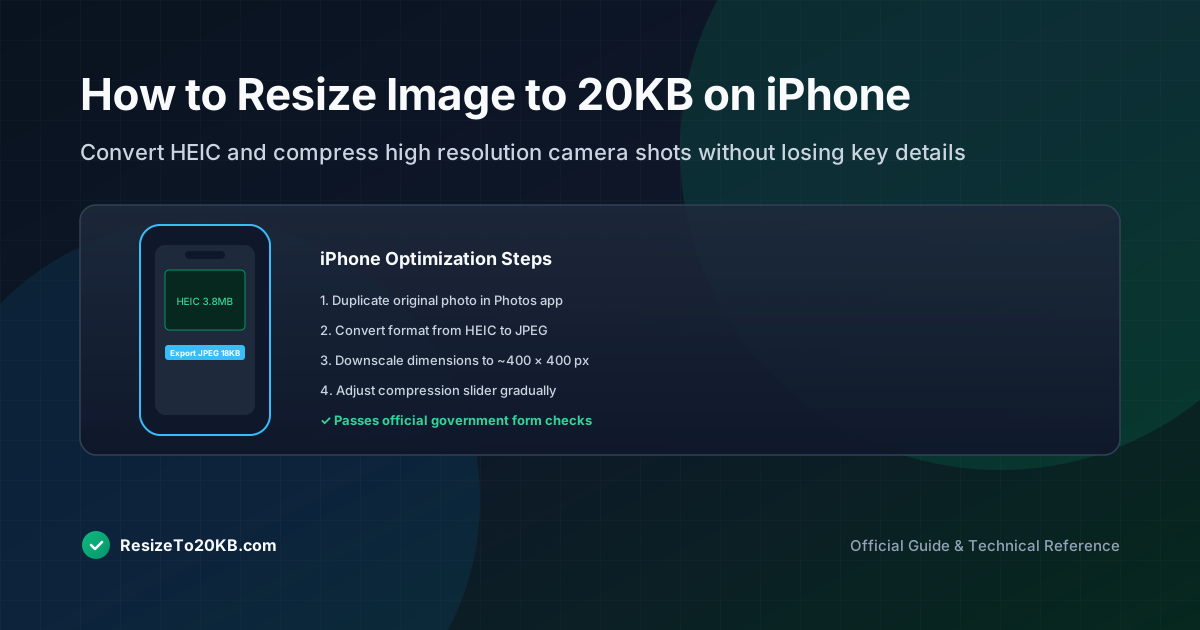
iPhone photos are famous for their impressive quality, but that quality comes with large file sizes that rarely meet strict upload requirements. This guide covers exactly how to resize image to 20KB on iPhone while preserving the details that actually matter.
Why iPhone Photos Can Be Larger Than an Online Form Allows
Modern iPhones capture extremely high-resolution photos by default, often producing files well over 2MB or 3MB. This massive gap between original size and a typical 20KB image iPhone requirement demands significant reduction before upload becomes possible.
Understanding this gap sets realistic expectations. You’re not making minor adjustments here, you’re dramatically shrinking a photo to a tiny fraction of its original size, which requires both dimension reduction and meaningful compression.
How to Check the Original Photo’s File Size
Open the Photos app, select your image, tap the information icon, and view file details. This reveals your starting image file size iPhone measurement, giving you a clear baseline before beginning any editing work.
Knowing your starting point helps set expectations for how much reduction lies ahead. A 4MB original photo needs far more aggressive treatment than a photo that started out already reasonably compact in size.
How iPhone Image Dimensions Affect the Final KB Size
Reducing iPhone image dimensions before compression dramatically improves your chances of hitting 20KB successfully. Most photo editing apps allow manual dimension entry, letting you specify exact pixel width and height values directly.
Aim for dimensions matching your specific requirement, typically somewhere between 200x200 and 600x600 pixels for most official applications. Starting smaller here means compression won’t need to work nearly as aggressively afterward.
How to Create a Smaller Copy Instead of Replacing the Original
Always duplicate your photo before editing, preserving the original untouched. In the Photos app, use “Duplicate” before making adjustments, ensuring your high-quality source remains available if you need to retry the process later.
This precaution matters significantly. Overwriting your only copy with an aggressively compressed 20KB photo iPhone result means starting from scratch entirely if requirements change or your first compression attempt doesn’t turn out well.
How JPEG and HEIC Affect the 20KB Target
iPhones default to HEIC image format, which offers excellent quality at smaller sizes than traditional JPEG. However, many upload portals don’t accept HEIC, requiring conversion to standard JPEG before compression work even begins.
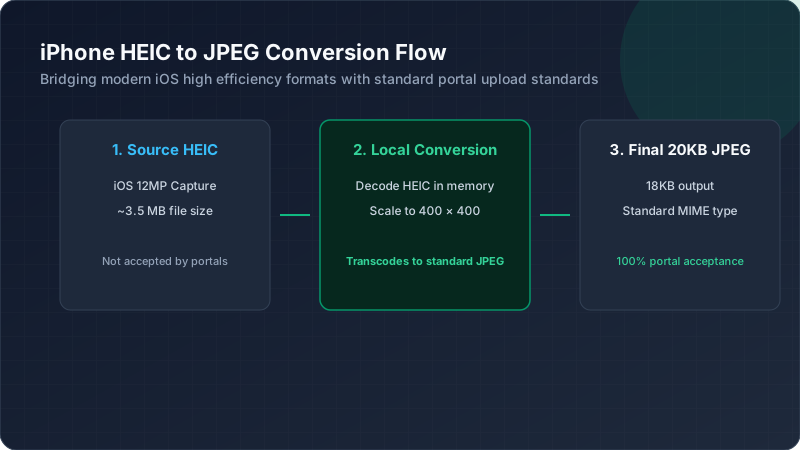
Check your target platform’s accepted formats first. If JPEG is required, use the Photos app’s export options or a dedicated HEIC conversion tool to switch formats before proceeding with dimension and compression adjustments.
How to Reduce Dimensions Before Applying Strong Compression
Following the correct order matters enormously. Resize dimensions first using your chosen editing app, then apply compression afterward. This sequence consistently produces cleaner results than compressing an unnecessarily large original image directly.
Here’s a simple recommended workflow:
| Step | Action |
|---|---|
| 1 | Duplicate original photo |
| 2 | Convert HEIC to JPEG if needed |
| 3 | Reduce pixel dimensions |
| 4 | Apply compression gradually |
| 5 | Verify final file size |
How to Preserve Important Facial and Document Details
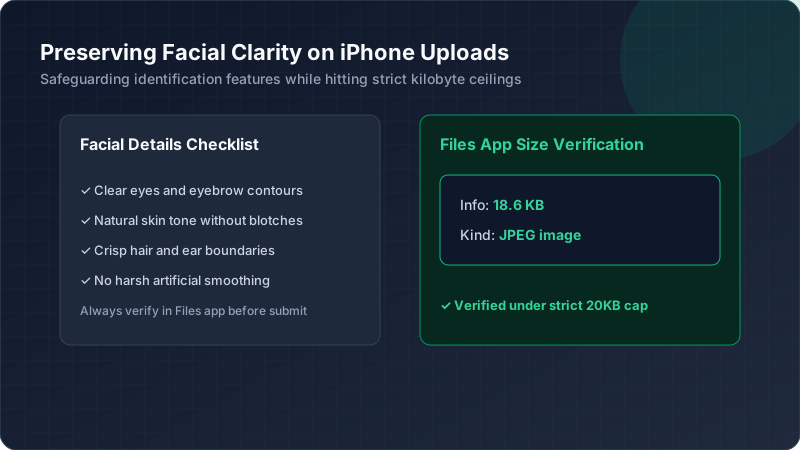
For identification photos specifically, avoid overcompressing to the point where facial features become unclear. Test moderate compression levels first, checking whether important facial details remain clearly recognizable before pushing settings any lower.
For document photos containing text, similarly prioritize legibility over hitting the exact smallest possible file size. Sometimes stopping slightly above absolute minimum compression preserves crucial readability that matters more than shaving off a few extra kilobytes.
How to Verify the Final File Before Uploading
After exporting, check the file size through the Files app or Photos app details panel. Confirm your 20KB photo iPhone result actually meets the target before considering your preparation work genuinely complete and ready for submission.
This verification habit prevents frustrating upload rejections. Never assume compression settings worked correctly without actually confirming the resulting numerical file size through your device’s built-in file information display.
What to Do When an iPhone Photo Still Exceeds 20KB
If your result still exceeds the limit, reduce dimensions further before attempting compression again. Sometimes a stubborn photo simply requires smaller starting measurements than your first attempt used for successful compression to occur.
Third-party compression apps from the App Store sometimes offer finer control than built-in tools. If Photos app options feel limiting, exploring dedicated iPhone photo compressor apps might provide the precision needed for particularly difficult images.
Conclusion: Preparing a 20KB Photo on iPhone
Getting an iPhone photo down to 20KB requires working through dimensions, format, and compression systematically rather than randomly adjusting settings. Duplicate your original first, convert formats if needed, then reduce dimensions before compressing gradually. This methodical approach consistently produces usable results without sacrificing critical detail.