
Every online form seems to have that one impossible requirement: upload a photo under 20KB. It sounds simple until you actually try it. This guide walks through exactly how to resize image to 20KB, covering dimensions, compression, and format choices so your photo passes upload requirements without becoming unusable.
What Does a 20KB Image Actually Mean?
A 20KB image refers to file size, not physical dimensions. KB stands for kilobytes, a measurement of digital storage. Many people confuse this with pixel dimensions, but the two are completely separate. You can shrink file size while keeping dimensions untouched, or vice versa.
Understanding this distinction matters before you start editing. A photo compressor targets file size directly, while a resize tool changes width and height. Most successful attempts combine both approaches, since dimensions and compression work together to hit the smallest usable size.
How Image Dimensions Affect the Final File Size
Larger image dimensions mean more pixel data, which directly increases file size. Reducing width and height before compressing gives you a massive head start toward reaching 20KB. This is often the single most effective step in the entire process.
A photo shot at 4000x3000 pixels carries far more data than one resized to 400x300. Shrinking image resolution first makes the compression stage far less aggressive, helping preserve more visible quality once you apply JPEG compression afterward.
How JPEG Compression Helps You Reach 20KB
JPEG compression removes visual information the human eye barely notices, dramatically shrinking file size. Unlike simple resizing, compression works by adjusting quality settings, trading a small amount of clarity for significant space savings.
Most image resize tools offer a quality slider from 0 to 100. Lowering this value reduces file size fast, though pushing too low introduces visible artifacts. Finding the right balance is key to reaching your 20KB photo target successfully.
How to Resize and Compress an Image Step by Step
Start by reducing pixel dimensions to something reasonable, like 300x300 or smaller depending on requirements. Next, apply compression, lowering JPEG quality gradually while checking file size after each adjustment. Repeat until you land under 20KB.
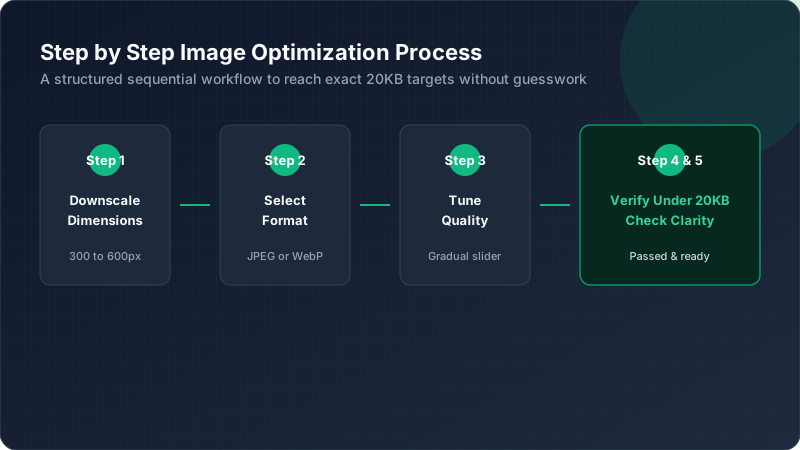
Here’s a simple step overview:
| Step | Action |
|---|---|
| 1 | Reduce pixel dimensions |
| 2 | Convert to JPEG format |
| 3 | Lower quality setting gradually |
| 4 | Check resulting file size |
| 5 | Repeat until under 20KB |
This structured approach avoids guesswork and random trial and error.
What Resolution Should You Use for a 20KB Photo?
Most official photo requirements specify dimensions between 200x200 and 600x600 pixels. Staying within this range gives you enough image resolution for clarity while keeping raw file size manageable before compression even begins.
Going smaller than necessary can hurt facial detail for identification photos. Going larger just adds unnecessary data you’ll need to compress away anyway. Matching image dimensions to actual requirements saves time and preserves better final quality.
How to Check Whether Your Image Is Under 20KB
After exporting, always verify the actual image file size using your device’s file properties or a dedicated size checker. Never assume a photo is under 20KB just because it looks visually small on screen.
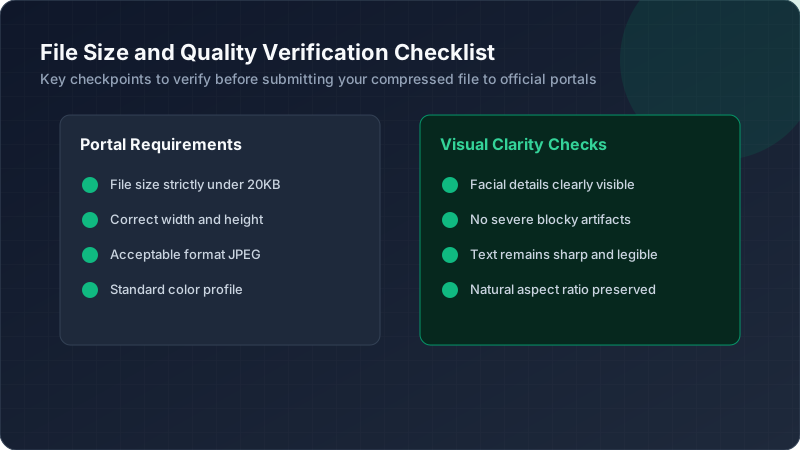
File managers on both desktop and mobile display exact KB values. This confirmation step prevents upload rejections later. Skipping verification is one of the most common reasons people submit forms with an oversized compressed photo repeatedly.
Why the Same Dimensions Can Produce Different File Sizes
Two photos with identical width and height can still produce wildly different file sizes. This happens because image compression depends heavily on visual complexity, not just pixel count. Busy, detailed photos compress less efficiently than simple ones.
A plain background compresses smoothly, while a cluttered, colorful photo resists compression. This explains why some 20KB photo attempts succeed easily while others struggle, even using nearly identical starting dimensions and quality settings during export.
How to Reach 20KB Without Making the Photo Unusable
Balance is everything here. Push compression too hard, and facial features or document text become unreadable. The goal isn’t just hitting 20KB, it’s producing a usable compressed photo that still serves its intended purpose.
Try reducing dimensions moderately first, then apply gentle compression rather than extreme settings immediately. This layered approach usually preserves far more visible quality than aggressively compressing a full-sized 20KB image all at once.
What to Do When Your Image Is Still Larger Than 20KB
If you’ve resized and compressed but still exceed the limit, reduce dimensions further. Sometimes a 20KB target simply requires smaller pixel dimensions than initially attempted, especially for detailed or colorful original photographs.
Converting to a different format occasionally helps too. Switching from PNG to JPEG often produces smaller results immediately, since JPEG compression generally outperforms PNG for photographic content when targeting extremely small file size limits.
Conclusion: How to Create a 20KB Image Successfully
Reaching a 20KB image target comes down to combining smart resizing with careful compression. Start with reasonable dimensions, apply gradual quality adjustments, and always verify your final file size before uploading. With this simple process, hitting strict size limits becomes straightforward rather than frustrating.