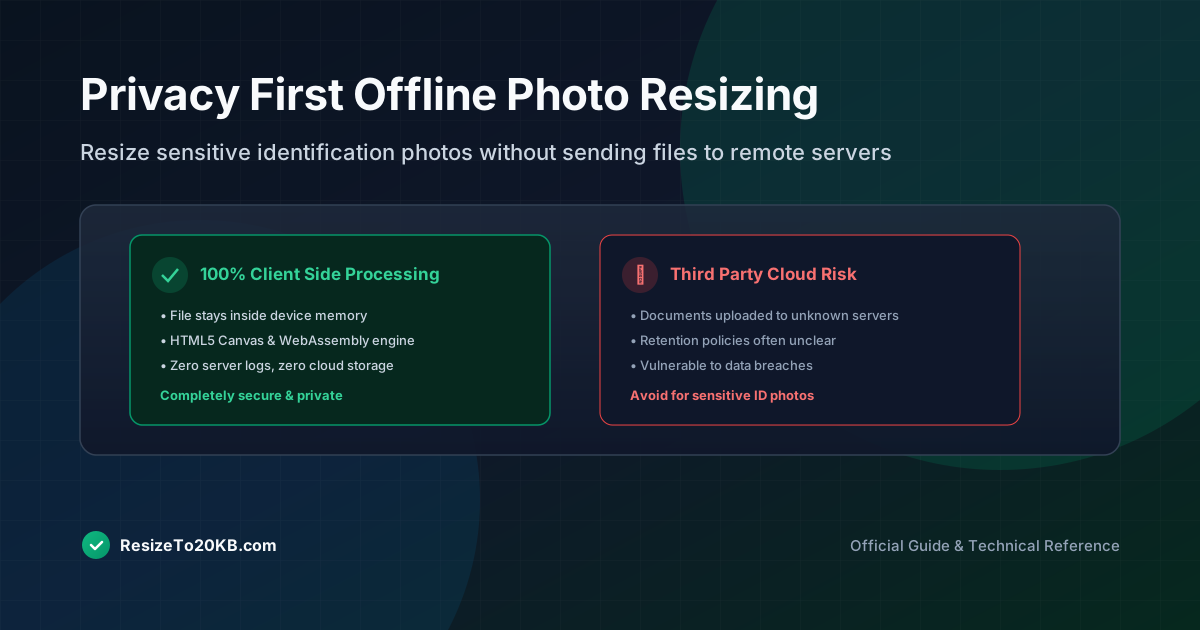
Not everyone feels comfortable uploading personal photos to random online compression websites. Sensitive documents, identification photos, and private images deserve better handling. This guide covers how to resize image to 20KB offline, keeping your files completely private throughout the entire process.
Why Some Photos Should Be Resized Locally
Certain images simply shouldn’t touch third-party servers. Passport photos, medical documents, and other sensitive files carry genuine photo privacy concerns. Uploading them to unknown compression websites introduces unnecessary risk for information you’d rather keep private.
Offline image resizing eliminates this risk entirely. Your files never leave your device, meaning there’s no server storage, no data collection, and no uncertainty about what happens to your image after processing finishes elsewhere.
How Offline Image Resizing Protects Sensitive Files
Working locally means complete control over your data. No third party ever sees your sensitive image, and there’s no risk of accidental exposure through data breaches or questionable privacy policies buried in website terms of service.
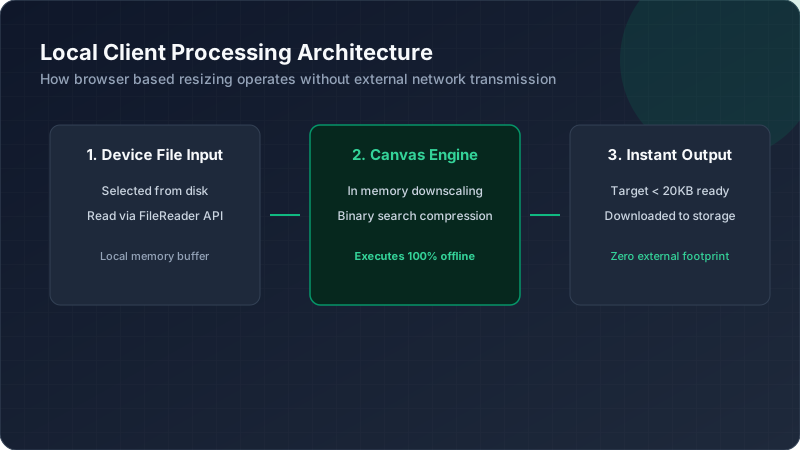
This matters enormously for identification documents specifically. A private image compression approach ensures your passport photo, visa application image, or personal document never passes through servers you don’t personally control or trust.
What Types of Photos You May Prefer Not to Upload
Beyond official documents, consider medical images, financial paperwork screenshots, or anything containing personal identifying information. These categories all benefit from local image processing rather than trusting unknown online compression services with sensitive content.
Even seemingly harmless photos deserve caution sometimes. Once uploaded anywhere, you lose direct control over storage duration, backup practices, and potential data sharing, making offline photo compressor tools the safer default choice generally.
How to Resize a Photo on a Windows Computer
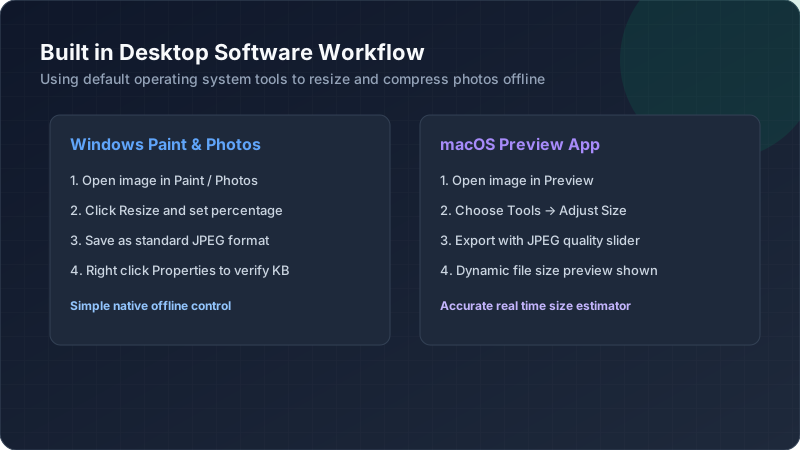
Windows includes built-in tools capable of basic resizing without installing anything extra. The Photos app allows simple dimension changes, while Paint offers additional export controls for adjusting image dimensions before saving your final file.
For more control, third-party desktop software designed specifically for Windows image resize tasks offers finer compression adjustments. These programs run entirely offline, processing your photo without any internet connection required whatsoever.
How to Reduce JPEG Quality Without Using an Online Service
Most desktop image editors include export quality sliders, letting you control JPEG compression directly during the save process. Lowering this percentage reduces file size while keeping the entire operation completely offline and private.
This built-in functionality means you rarely need external tools at all. Standard desktop image editor software typically provides everything necessary for basic resizing and compression tasks without ever requiring an internet connection.
How Built-In Image Tools Can Handle Basic Resizing
Operating systems generally include enough built-in functionality for basic local image optimizer tasks. Mac’s Preview app, Windows Photos, and similar default tools handle straightforward resizing and export quality adjustments reasonably well.
For most everyday 20KB photo offline needs, these default applications suffice completely. Dedicated third-party software becomes necessary mainly for batch processing multiple images or achieving finer, more precise compression control simultaneously.
How Offline Applications Can Target a Small File Size
Some desktop applications let you specify an exact target file size directly, automatically adjusting quality until reaching that number. This removes guesswork compared to manually adjusting sliders repeatedly during a no upload image compressor workflow.
Here’s a comparison of manual versus automated approaches:
| Method | Control Level | Time Required |
|---|---|---|
| Manual slider adjustment | High | Longer |
| Automated target size | Lower | Faster |
Choose based on how much precision your specific task actually requires.
How to Check the Result Without Sending the Image Online
Desktop file managers display exact KB file size directly, without needing any internet connection. Right-click properties or file information panels show this instantly, letting you verify results completely offline throughout the process.
This local verification step matters just as much as the resizing itself. Confirming your 20KB image offline result through built-in system tools maintains complete privacy from start to finish without exception.
What to Look For When Choosing Offline Image Software
Prioritize software with clear, transparent functionality and no hidden internet requirements. Some desktop apps quietly upload files for “cloud processing” despite appearing local, defeating the entire purpose of choosing offline image tool options.
Check privacy policies and network permissions before installing anything. Genuinely private local file compression software shouldn’t require internet access at all for basic resizing and compression functionality during normal operation.
Conclusion: Creating a 20KB Photo Privately
Sensitive photos deserve careful handling, and that means keeping them off unfamiliar servers whenever possible. Using built-in or trusted offline image resizer tools lets you hit strict 20KB targets while maintaining complete image privacy throughout the entire process, from start to finish.