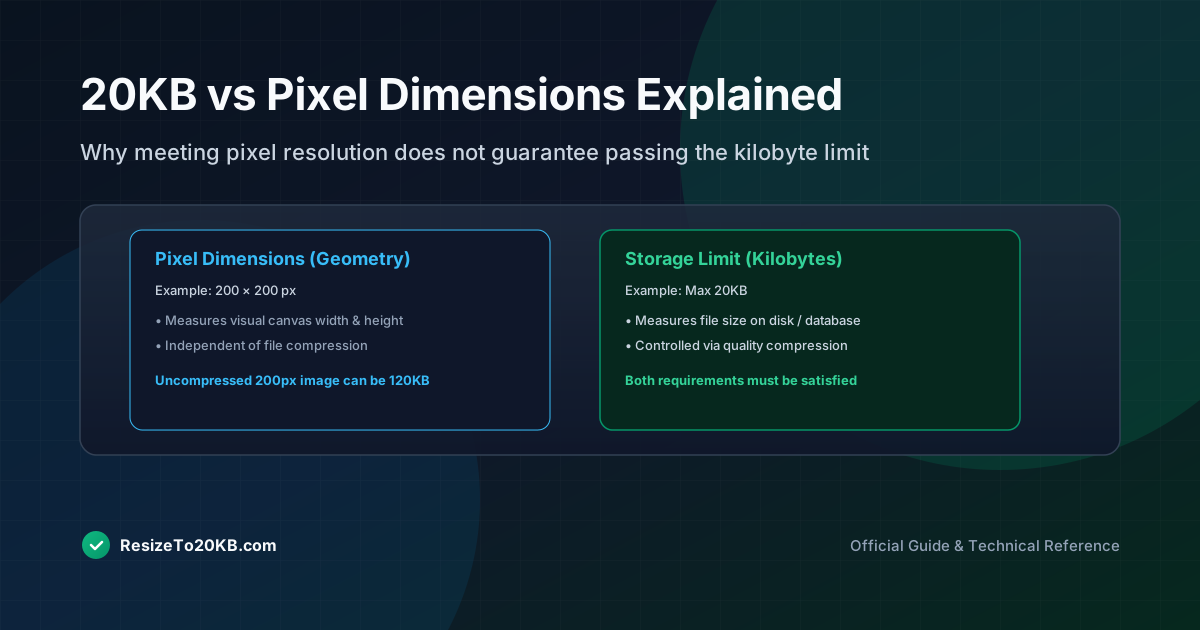
Many people assume meeting one requirement automatically satisfies the other, but 20KB vs pixel dimensions are two entirely separate specifications. Understanding both is essential, since forms frequently reject photos that meet one requirement while completely missing the other.
Why File Size and Pixel Dimensions Are Two Different Requirements
File size measures digital storage in kilobytes. Pixel dimensions measure physical width and height in pixels. These two values don’t automatically correlate, meaning satisfying one requirement tells you nothing about whether you’ve met the other.
This confusion causes countless upload failures. Someone resizes their photo to correct pixel dimensions, assumes they’re finished, then gets rejected because file size still exceeds the separate maximum file size limit specified elsewhere in requirements.
What Does a Requirement Like 200 × 200 Pixels Actually Mean?
A pixel size requirement like 200x200 specifies exact width and height measurements, unrelated to file size entirely. This number describes the image’s physical resolution, essentially how much visual detail the photo contains.
Meeting this dimension requirement alone says nothing about your image file size. A properly dimensioned 200x200 photo could still weigh 500KB or more, depending entirely on compression settings and format choice applied during export.
How a Photo Can Meet the Pixel Requirement but Fail the KB Limit
This happens constantly. Someone crops their photo to exactly the required photo dimensions, exports without adjusting compression, and ends up with correct dimensions but a file size far exceeding the platform’s separate 20KB cap.
Both requirements must be addressed independently. Correct pixel resolution solves only half the puzzle. You still need appropriate JPEG compression or quality adjustment to bring the actual file size down to acceptable levels afterward.
How an Image Can Be Under 20KB but Still Have the Wrong Dimensions
The reverse problem happens too. Aggressive compression can shrink file size well under 20KB while leaving incorrect image width and image height values, causing rejection for failing to match required dimensions exactly.
This is why checking both values matters equally. Passing the file size limit check means nothing if your photo’s actual pixel measurements don’t match what the specific online form or application portal explicitly requires.
Why Aspect Ratio Matters When Resizing for an Online Form
Aspect ratio describes the proportional relationship between width and height. Forcing a photo into different proportions than required distorts the image, stretching or squashing faces and objects into unnatural, unusable shapes.
Always maintain correct aspect ratio by cropping rather than stretching when dimensions don’t naturally match. This preserves realistic proportions while still achieving the exact required dimensions specified by whatever platform you’re uploading to.
How Resolution and Pixel Dimensions Are Related
Pixel dimensions and digital resolution are closely connected concepts. More pixels generally means higher resolution and finer detail, though this also typically increases file size unless compression compensates accordingly during export.
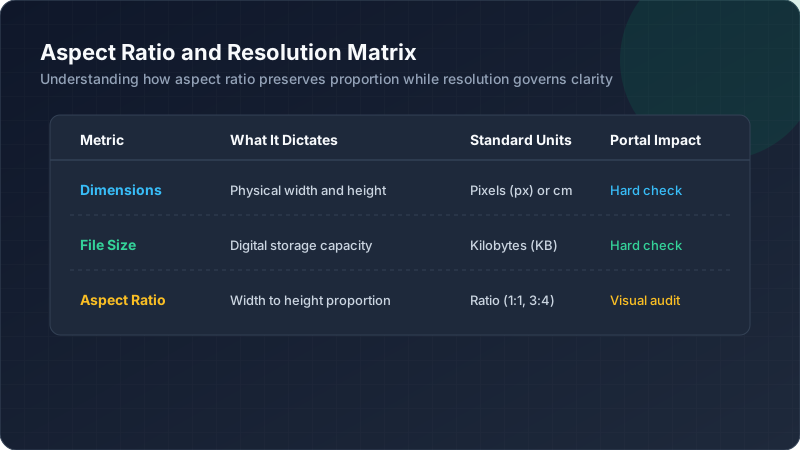
Here’s a simple table clarifying these related but distinct concepts:
| Term | What It Measures |
|---|---|
| Pixel Dimensions | Width x Height in pixels |
| File Size | Storage space in KB |
| Aspect Ratio | Proportional width-to-height relationship |
| Resolution | Pixel density and detail level |
How to Resize Without Stretching or Squashing the Photo
Crop first to match the required aspect ratio, then resize to exact pixel dimensions. This two-step order prevents distortion, since stretching a mismatched aspect ratio directly into required dimensions always produces unnatural results.
Most editing tools include a “constrain proportions” option during resizing. Enabling this feature automatically maintains correct aspect ratio throughout the process, preventing accidental distortion during manual dimension adjustments.
How to Meet Multiple Image Requirements at the Same Time
Address dimensions first, then tackle file size separately through compression. Trying to solve both simultaneously often causes confusion. This sequential image dimensions then file size approach keeps the entire process organized and manageable.
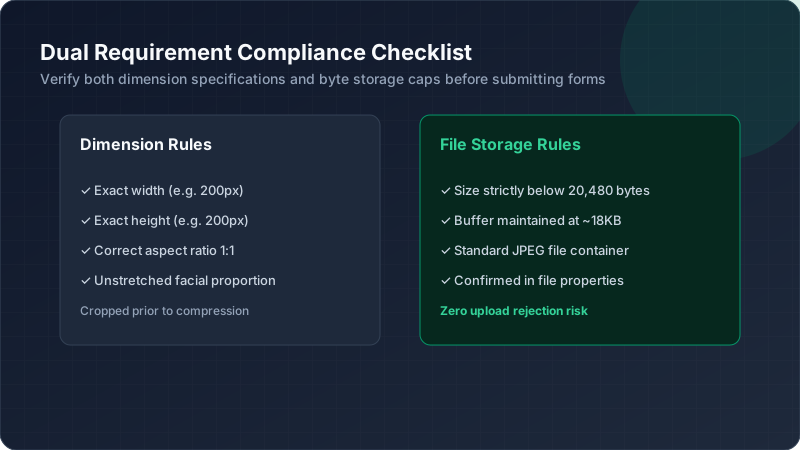
Double-check both values independently before considering the task complete. Meeting one requirement while forgetting to verify the other remains one of the most common reasons application photos get rejected during upload attempts.
How to Verify Both Dimensions and File Size Before Uploading
Check pixel dimensions through your editing software’s canvas size display, then separately verify image file size through file properties. Both numbers must match requirements independently before your photo is genuinely ready for submission.
Skipping either check risks rejection. This quick dual verification takes just moments but prevents frustrating resubmission cycles caused by overlooking one requirement while focusing exclusively on the other during preparation.
Conclusion: Matching KB Limits With Pixel Requirements
20KB vs pixel dimensions represent two entirely separate hurdles requiring separate solutions. Address dimensions through careful cropping and resizing, then handle file size through compression adjustments. Verifying both independently before uploading prevents the frustrating rejection cycles that trip up so many applicants.